Which is better as an upper elementary tech tool: Google Slides or Boom Cards by Boom Learning?! Today, I’ve invited Tiffany from The Learning Effect to chat with me to compare two of our favorite platforms for 1-to-1 classrooms/technology integration: Boom Learning and Google Slides. Now that we’ve created and used math and science resources on both of these platforms, we’ve fallen in love with both—but for different reasons.
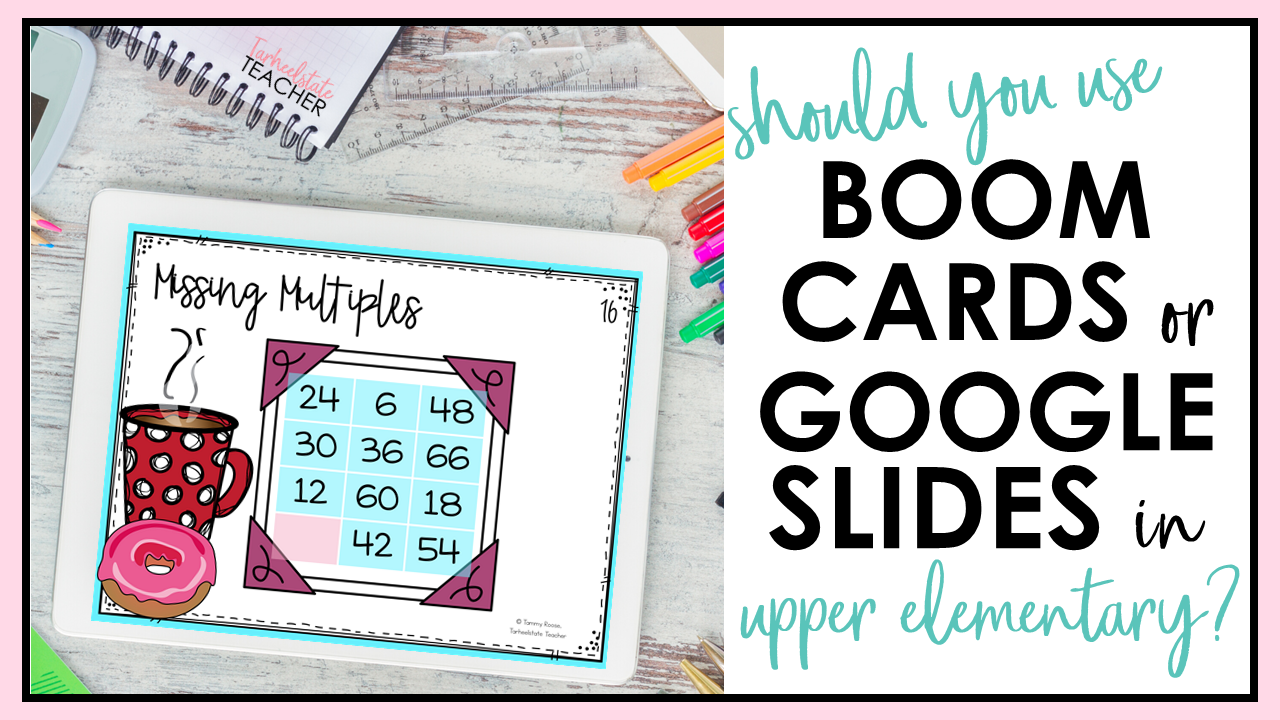
Boom Learning and Google Slides each have advantages and downsides. Which platform is the best for you to use with your students for engaging use of tech? Well, our opinion is that each one works amazingly well for different activities and assignments—and we want you to decide for yourself which one you love the most!
Fortunately, we’ve formatted some of our resources using both Boom Cards and Google Slides.
Keep reading because we’ve got some of those for you to try for free!
BOOM LEARNING
Boom Cards provide instant feedback like an online quiz/game. Students can play again and again, which is great for monitoring progress. In one round, students play 20 cards. Most Boom Decks include more than 20 cards, so when students play again, they can work on new questions.
Boom doesn’t require students to have a login when they use FastPlay.
To use Boom Cards, teachers will need to sign up for a free account. If you want access to student data, you’ll need to purchase a subscription. Starting at just $15 a year for 50 students, it’s a small price to pay to be able to receive student data and track growth. If you have more than one class or more than 50 students, there are other tiers available. Find out what membership is best for you here.
GOOGLE SLIDES
Google Slides is an internet-based presentation software that is part of Google Apps. Teachers have taken to creating resources with Slides to become more paperless and because Slides are similar to PowerPoint and easy to make interactive activities. Within Google Slides, students can complete written response assignments, use highlighting tools, manipulate objects on the screen, access linked resources, and more. Teachers can provide feedback, but must check the work manually. Google Slides is included with Google Apps for Education, which is free for school districts to sign up for.
LET’S COMPARE
Over the past few months and in response to the need for more web-based resources for distance learning, Tiffany and I have shared tips and tricks for each platform with one another. I’ve been creating Boom Cards for a few years now and am a huge fan of many of the time-saving features and the useful data they offer teachers. Tiffany has been working with Google Slides and Google Classroom for years and loves how easy it is for students to collaborate, work independently, or contribute to a whole class assignment.
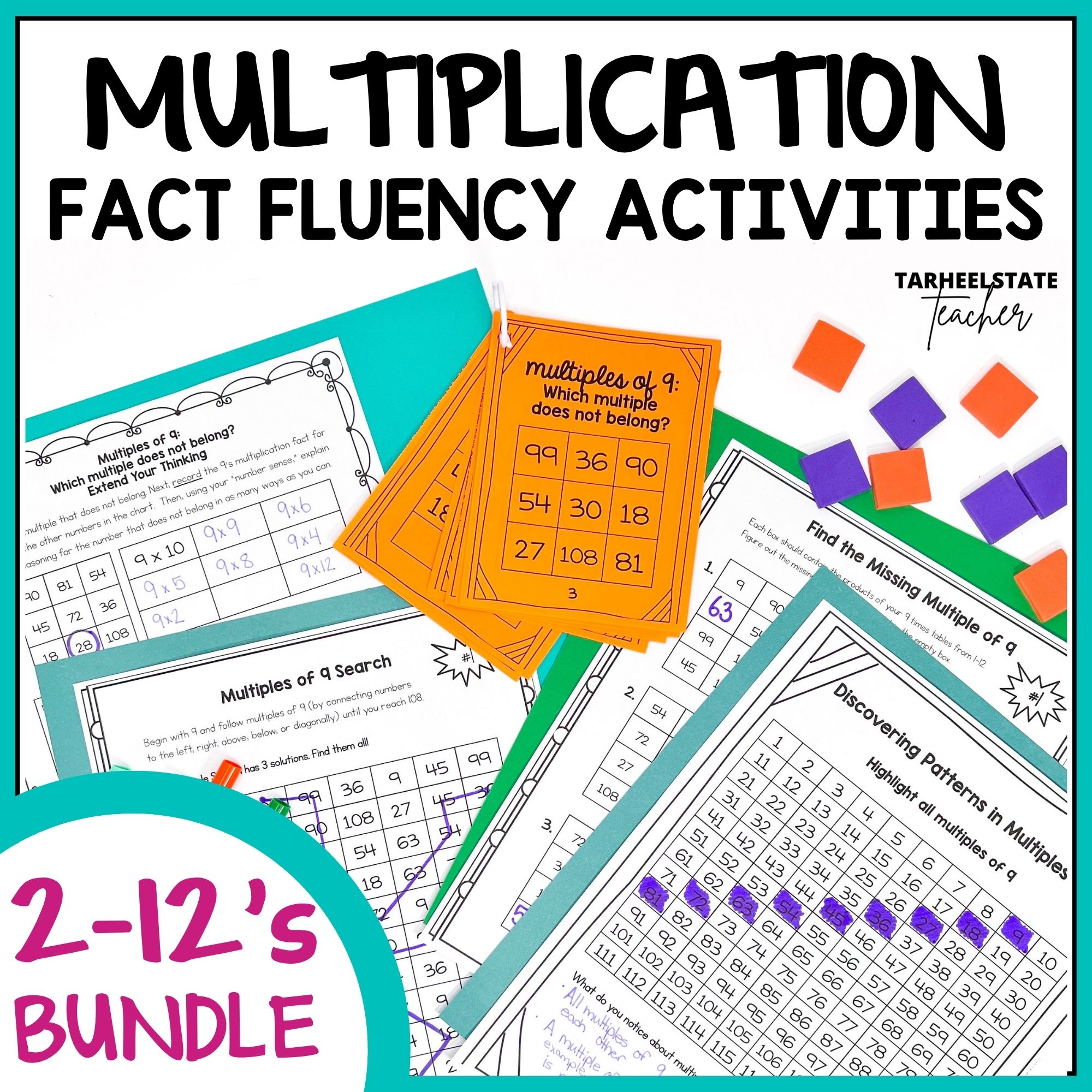
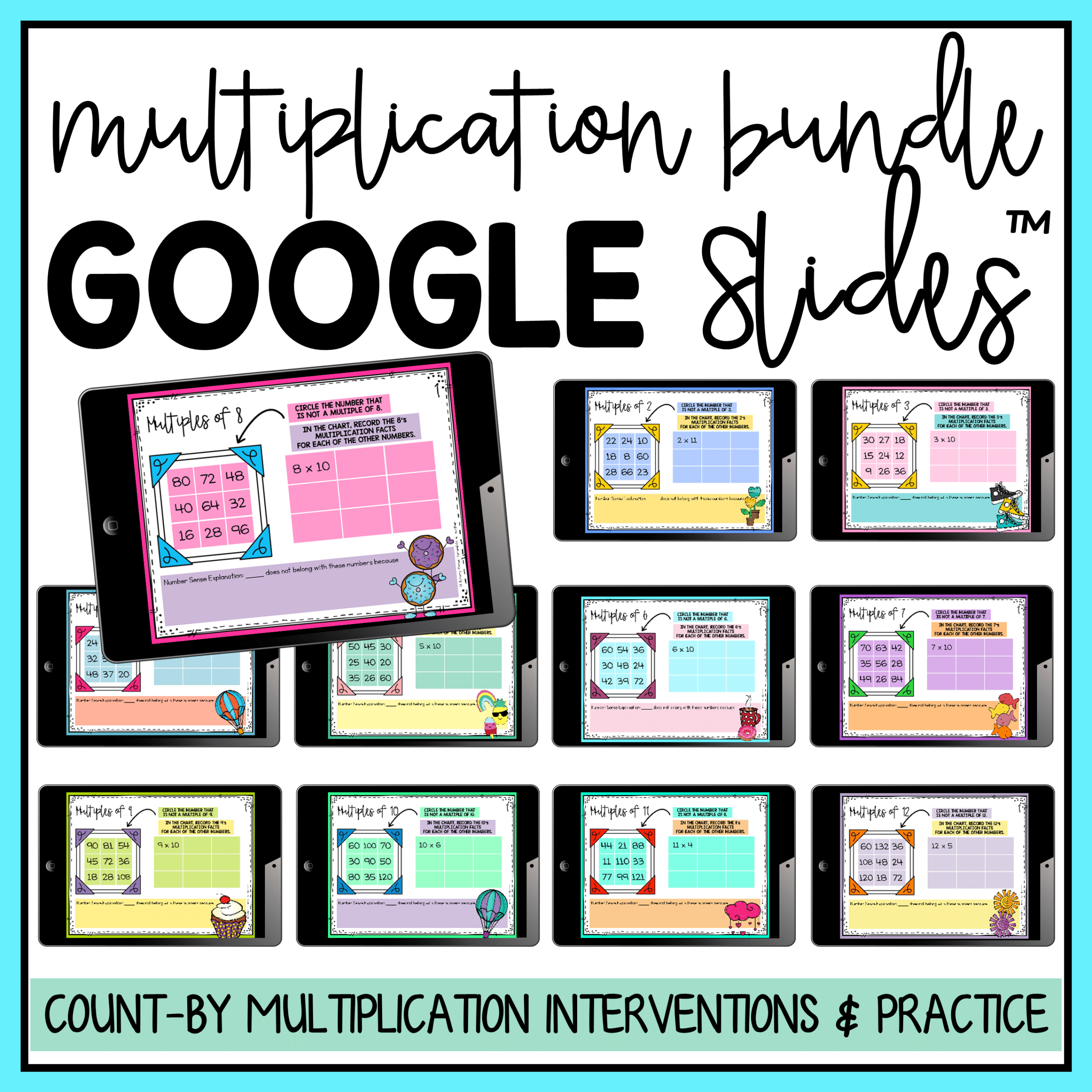
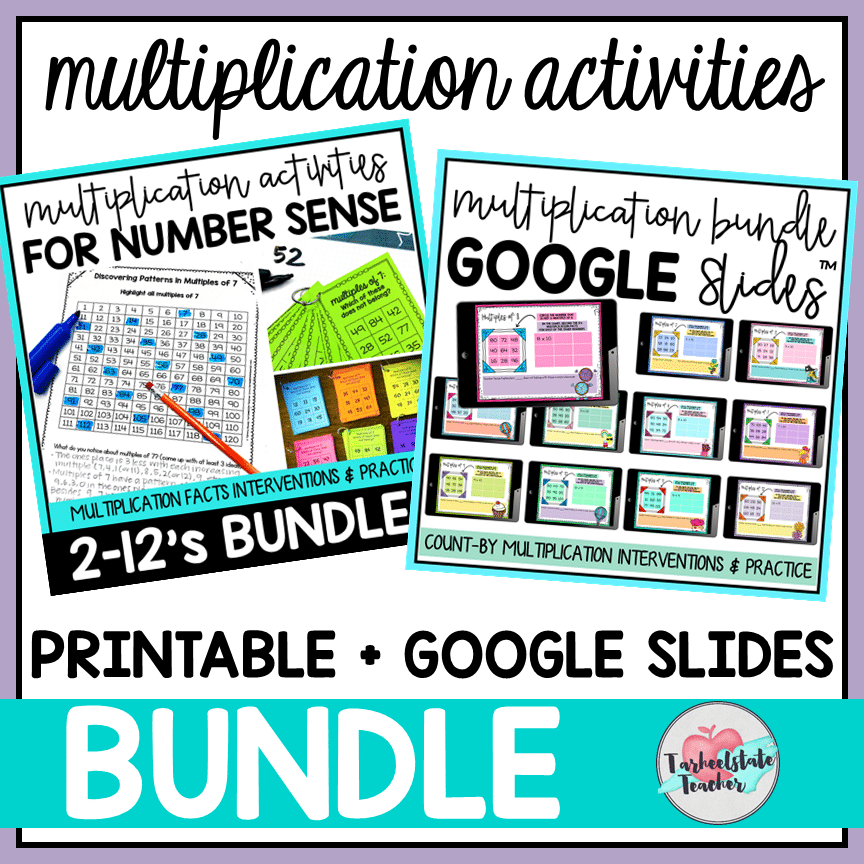
Before creating Google Slides versions of some of my math resources, I was struggling with the lack of self-checking ability within Google Slides. Because teachers requested Google Slides versions of some resources, I decided to give it a go! My Multiples of 2’s-12’s Multiplication Fact Intervention activities have been formatted for Google Slides.
While I LOVE the self-checking component of the Multiples of 2’s-12’s on Boom Learning, the Google Slides version offers another advantage—students can type detailed responses to share their number sense and explanation on the “Which Multiple Does Not Belong?” cards.
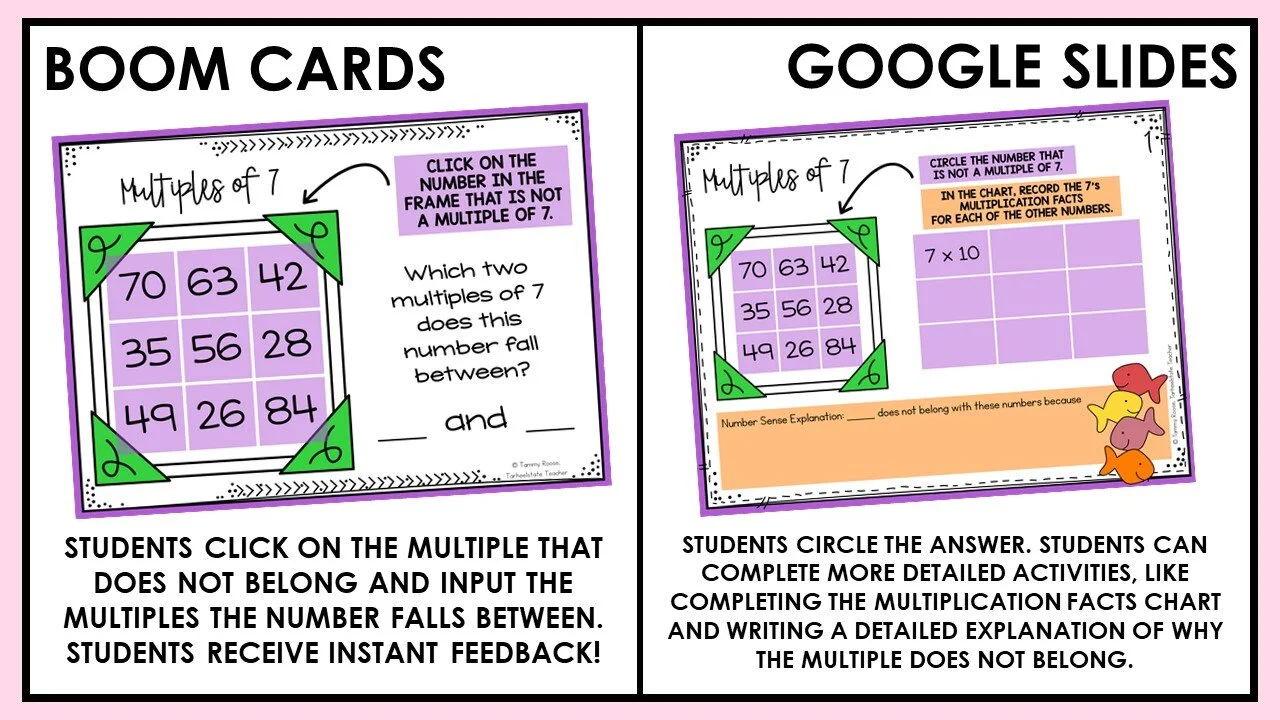
Tiffany has a unique way of working around the lack of self-checking capability on Google Slides. In her math resources, she links each slide to the answer sheet slide found at the end of the student file. I’ve done this within my Summer Themed Math Word Problems (find the Number Operations, Fractions, and Measurement Bundle here).
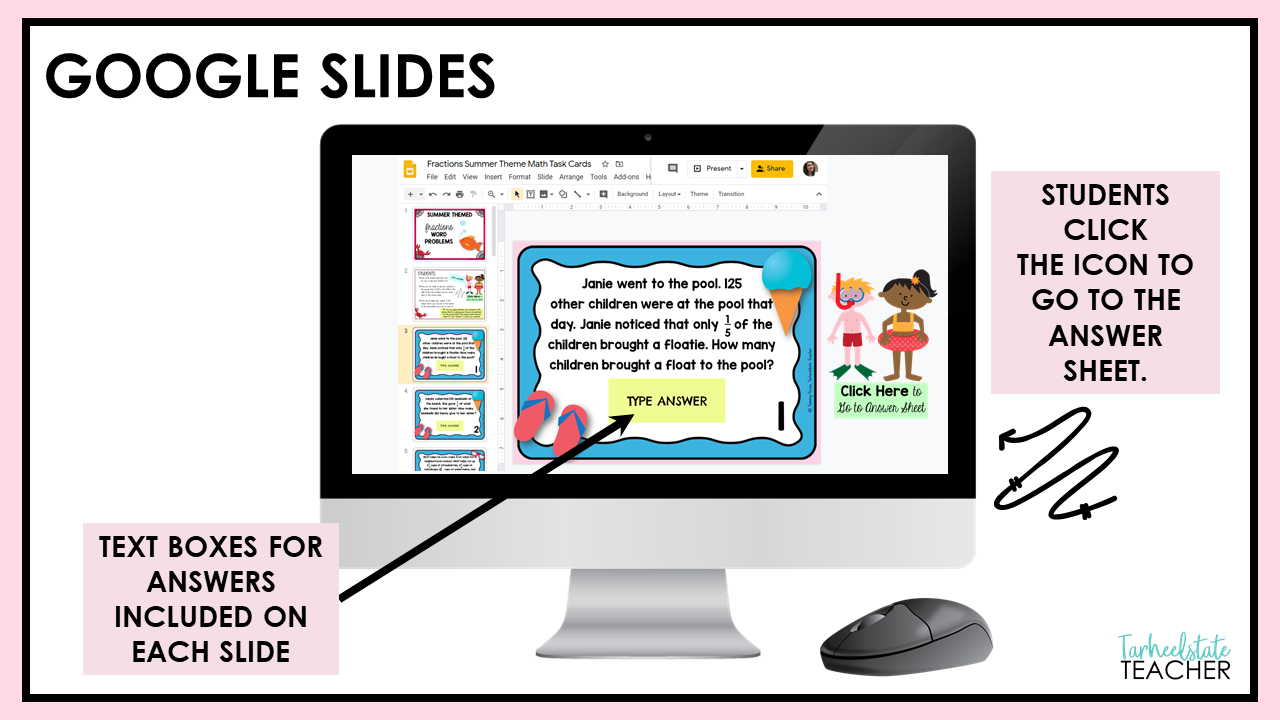
This makes checking student work a breeze for the teacher! In our resources that are set up like this, we’ve also linked each number on the answer sheet back to the problem slides. Students can easily travel back and forth between the problem slides and the answer sheet. (NOTE: I highly recommend requiring students to input their answers onto the slides as well as the answer sheet.)
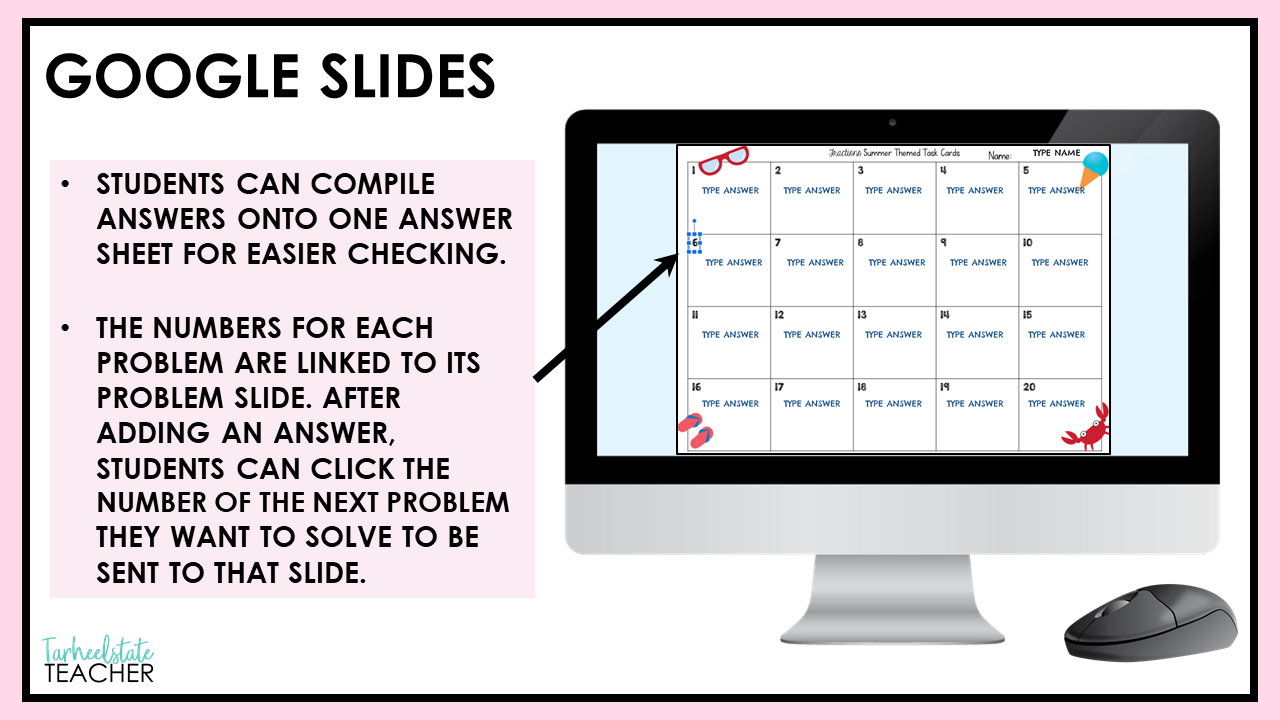
While teachers must manually check each student assignment, they can leave comments on student work and allow them to resubmit. We think it’s a great way to provide students with helpful feedback.
WHAT IF YOU WANT TO CREATE YOUR OWN RESOURCES?
If you want to create your own resources, setting up Boom Cards may have more of a learning curve, while we’re all likely adept at using Google Slides because of our experience with PowerPoint.
In Google Classroom, you can set up a complete lesson or sequence of learning activities—while Boom Deck activities are likely a component of a learning sequence. If you use Google Classroom but find you love Boom Cards, you can assign Boom Cards in Google Classroom.
Many teacher-authors are creating similar resources for both Boom and Google Slides (you’ll see some examples in our resources below). You should try out both platforms to see the advantages and downsides of both!
We’ve got a few freebies that will allow you to do that!
FREE BOOM CARDS
FREE Multiples of 7 Boom Cards | Multiplication Facts Boom Cards
FREE Multiples of 2 Boom Cards | Multiplication Facts
FREE GOOGLE SLIDES
FREE Multiples of 7 Google Classroom™ | Multiplication Facts
FREE Multiples of 2 Google Classroom™ | Multiplication Facts
NEED DONE-FOR-YOU ACTIVITIES TO HELP STUDENTS MASTER MULTIPLICATION FACTS? SHOP THE RESOURCES HERE: